I had one of those normal hosting server problems. Disk was getting full, customer does not want to delete emails, and when I started checking where the space went I found years of old mail sitting in Maildir.
This server is cPanel with Dovecot. One mailbox alone had around 9.5 GiB in Sent.
My first idea was of course bigger disk. But before adding storage I wanted to see if we can reduce physical usage without deleting mail and without making some external archive that customer cannot see from Roundcube.
Dovecot zlib support gave me a pretty nice solution.
The important part is this: old messages stay in the same mailbox. Customer can still go to Roundcube, open Sent, find a message from 2022 or 2023, read it and download attachment. Dovecot decompresses the message transparently when IMAP client asks for it.
This is what I did.
Warning: This is production email. Have a backup and test with one message first. Do not take a random script from a blog and run it against the only copy of customer mail.
1. Find where the disk space is going
I started with ncdu.
ncdu /home4
Inside one mailbox it was very obvious:
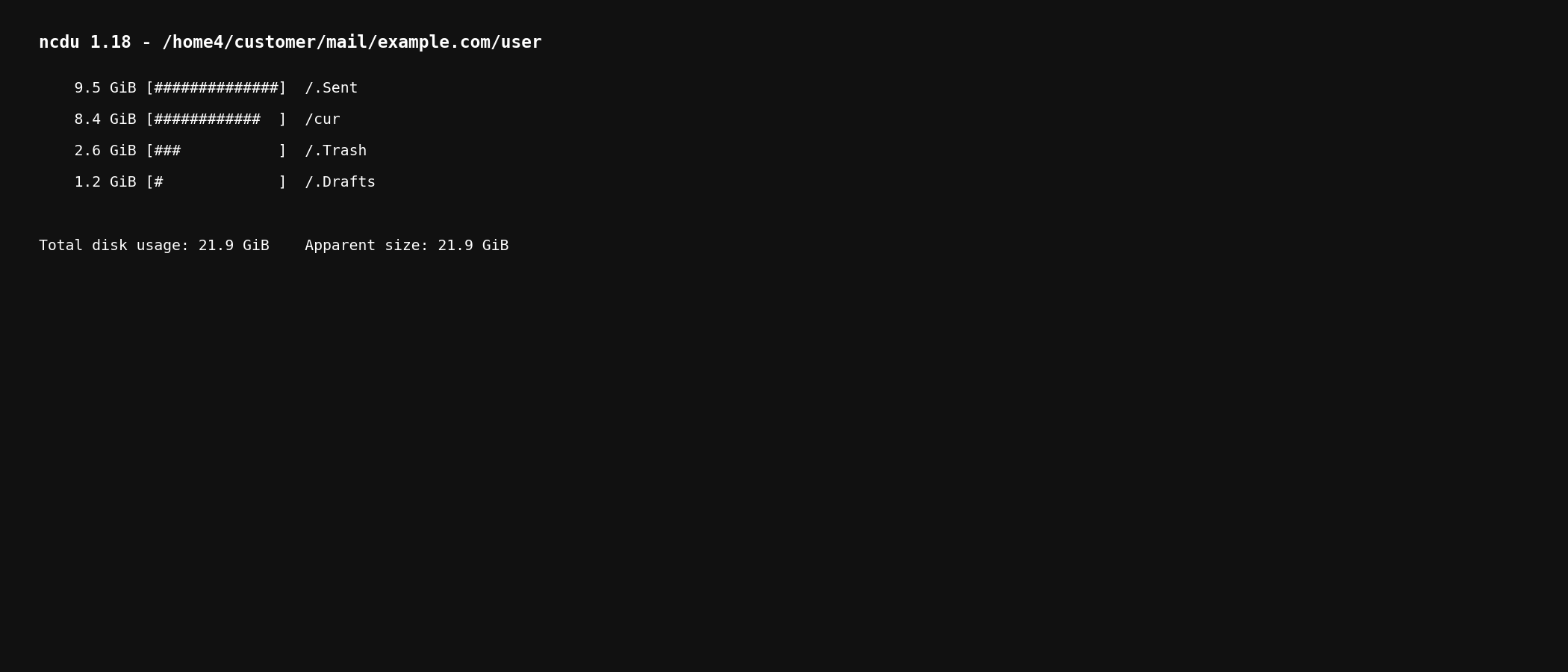
Almost 10 GiB only in Sent.
That was a good target because Sent folders can keep many years of messages with large attachments.
2. Check Dovecot and zlib support
First check Dovecot version:
dovecot --version
Then check compression plugins:
doveconf -a | grep -iE 'zlib|compress'
On this server I had Dovecot 2.3.21.1 and the zlib plugin was already loaded.
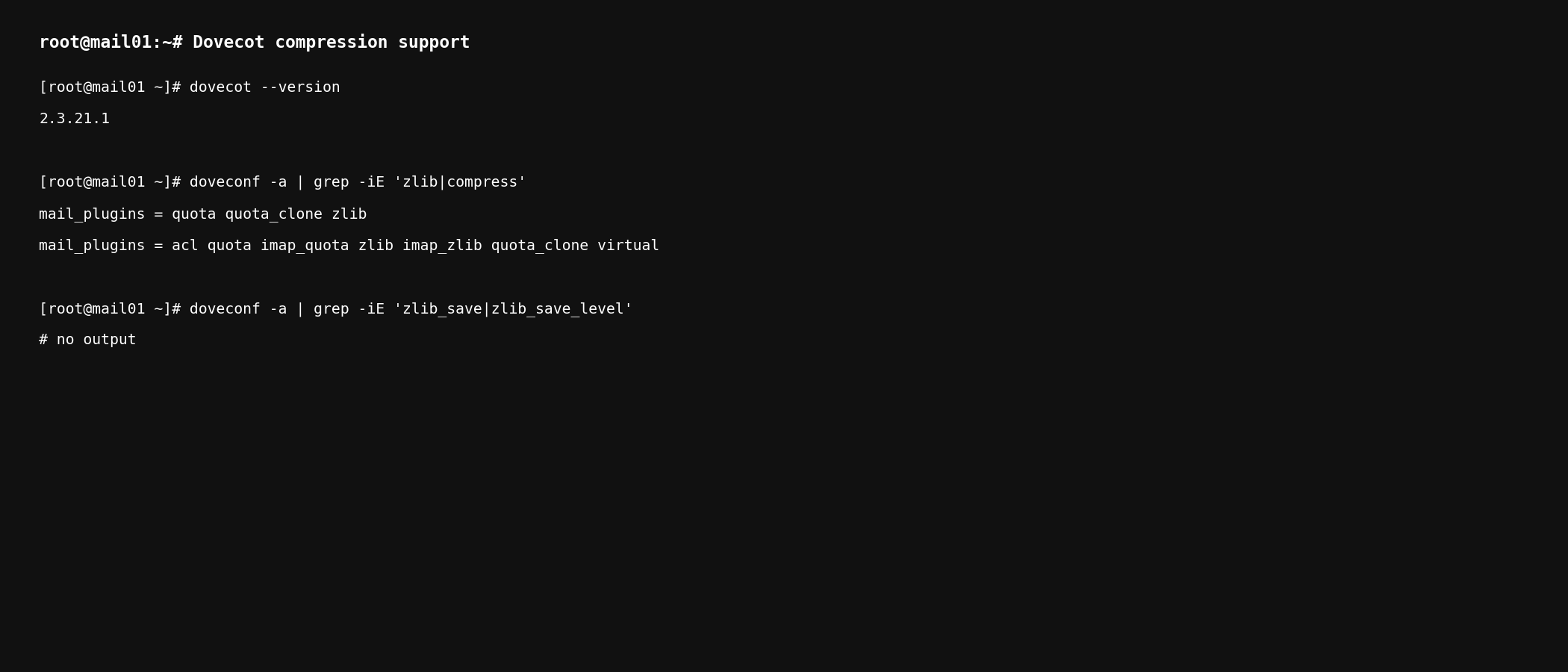
I also checked:
doveconf -a | grep -iE 'zlib_save|zlib_save_level'
There was no output.
So Dovecot had support to read compressed messages, but it was not automatically saving these existing messages compressed.
3. Check how large the messages really are
The mailbox was big but message count was not crazy. That normally means some messages are huge.
I checked largest messages in Sent:
find /home4/customer/mail/example.com/user/.Sent/cur \
  -type f -printf '%s %p\n' | sort -nr | head -30
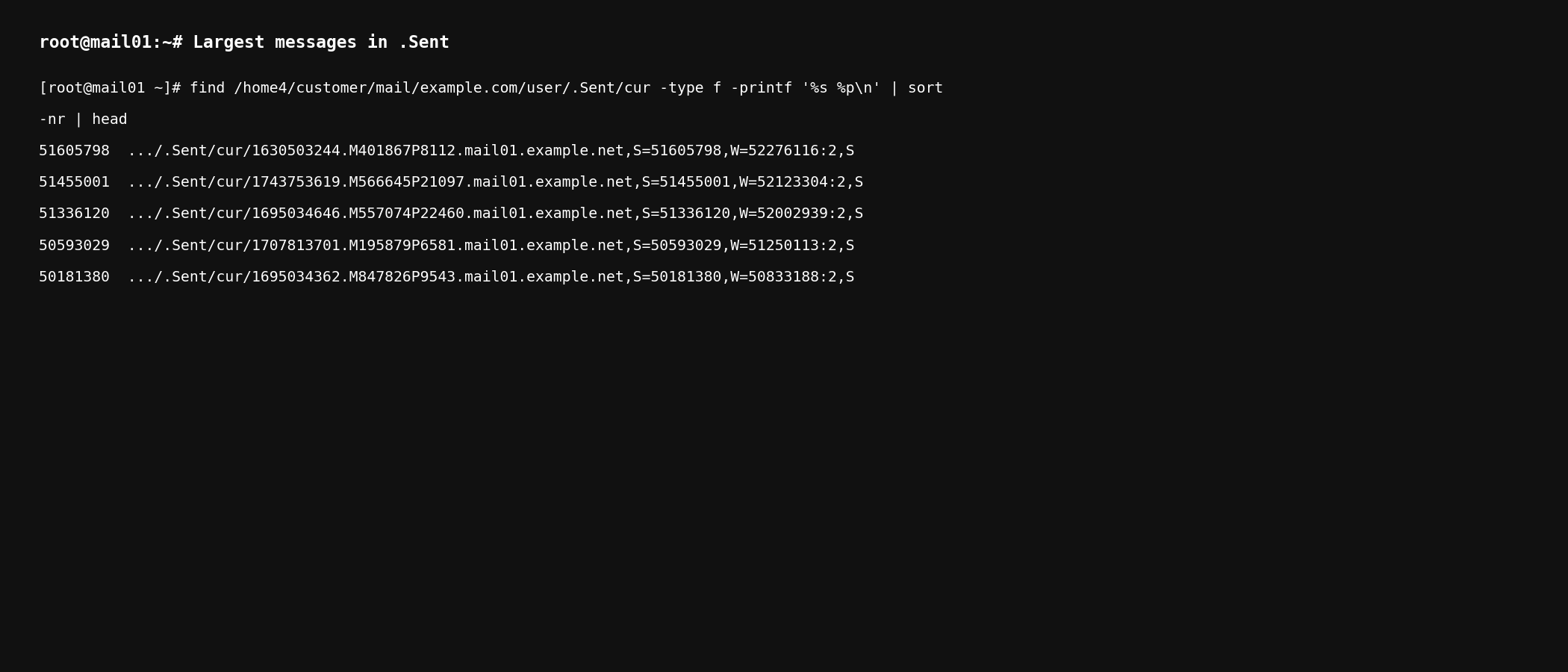
There were many messages around 45 to 52 MB.
You can also see Maildir filenames containing values like:
S=51605798,W=52276116
These messages were really using around 50 MB each on disk.
4. Before touching the mailbox, test compression
This part is important.
I did not start by compressing thousands of customer messages. I picked one large message and tested gzip into /tmp.
f='/path/to/one/large/maildir/message'

ls -lh "$f"

gzip -6 -c "$f" > /tmp/sent-test.gz

ls -lh "$f" /tmp/sent-test.gz
My result was:
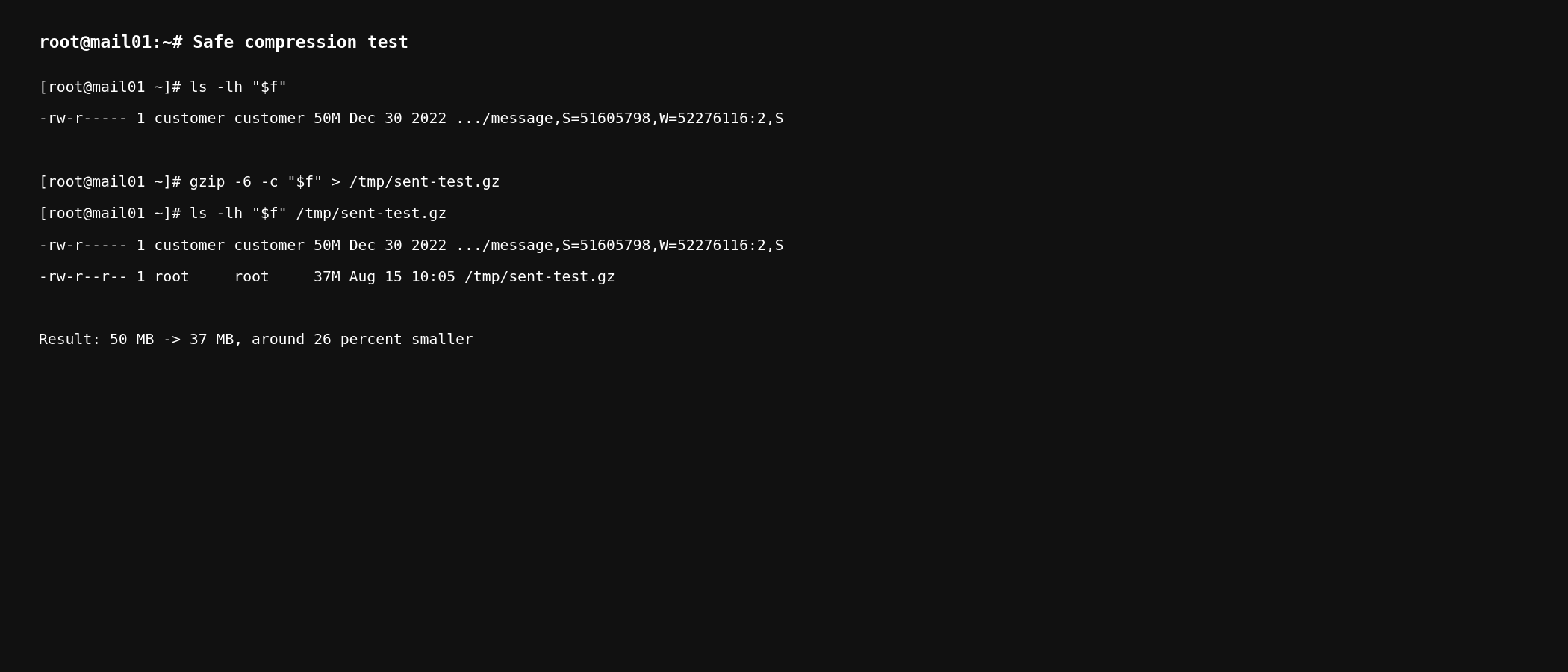
50 MB became 37 MB.
Around 26 percent saving.
It is not SQL dump compression where 10 GB can become 500 MB. Email attachments can already contain JPG, PDF, ZIP and other compressed formats.
But 26 percent across tens of gigabytes is still real disk space.
5. Check which years are using the space
I did not want to start with recent mail. Old Sent mail was a much better first target.
This command gave me a simple view per year:
find /home4/customer/mail/example.com/user/.Sent/cur \
  -type f -printf '%TY %s\n' |
awk '
{
    count[$1]++;
    bytes[$1]+=$2
}
END {
    for (y in bytes)
        printf "%s: %5d messages  %8.2f GiB\n",
        y, count[y], bytes[y]/1024/1024/1024
}' | sort
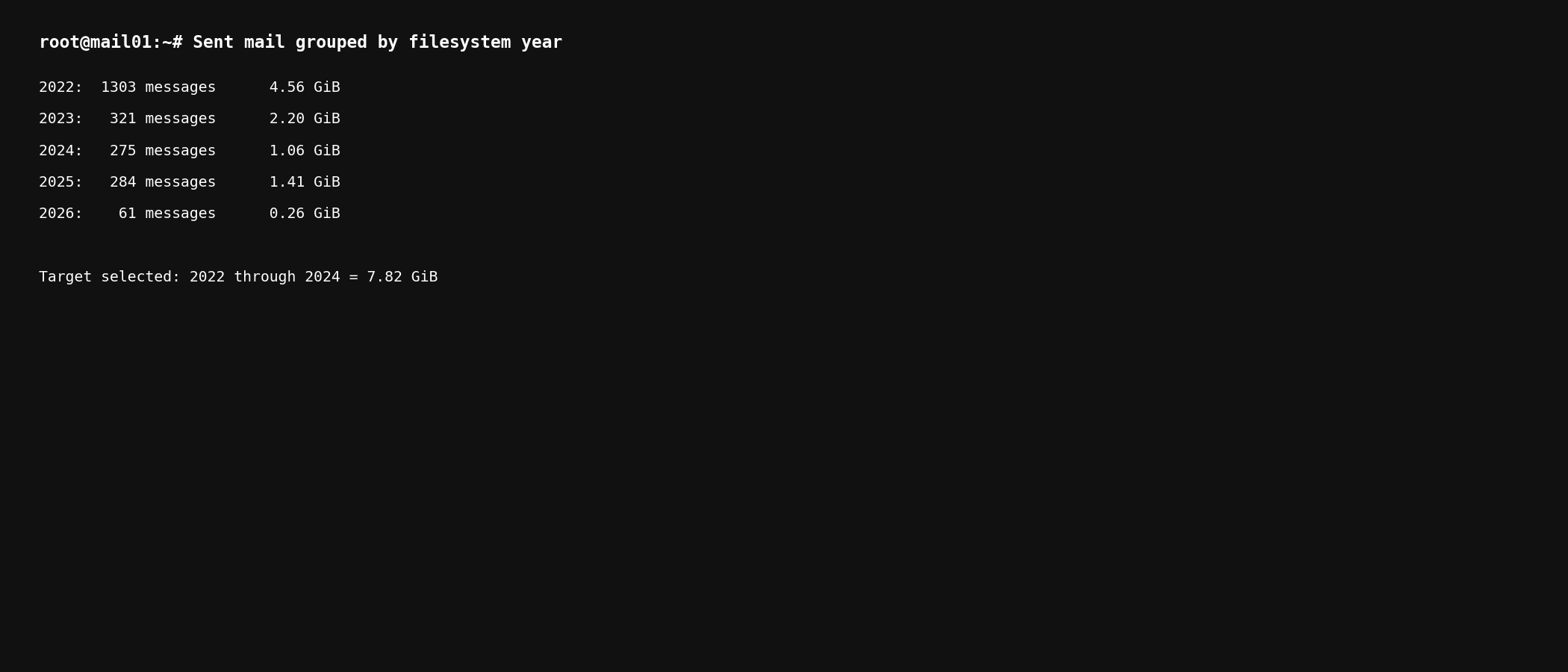
2022 through 2024 was around 7.82 GiB.
That was my first target.
6. Test one real Maildir message
Now I tested one actual 2022 message.
First I made a backup:
cp -a "$f" /root/test-mail-before-compression.eml
I created the compressed version inside the Maildir tmp directory:
MAILDIR="/home4/customer/mail/example.com/user/.Sent"

tmp="$MAILDIR/tmp/$(basename "$f").compressed"

gzip -6 -c "$f" > "$tmp"
Then preserve owner, permissions and timestamp:
chown --reference="$f" "$tmp"
chmod --reference="$f" "$tmp"
touch -r "$f" "$tmp"
Verify the compressed file:
gzip -t "$tmp" && echo "GZIP OK"
Only after verification I replaced the original:
mv -f "$tmp" "$f"
The important thing here is that I kept the original Maildir filename. I did not rename it to .gz.
The message still has its original S= and W= information in the filename while the physical file on disk is now smaller.
7. Test through Dovecot
A gzip test is not enough. I wanted Dovecot itself to read the mailbox.
For example:
doveadm fetch -u user@example.com \
  'hdr.subject hdr.date' \
  mailbox INBOX.Sent ALL 2>&1 | head -30
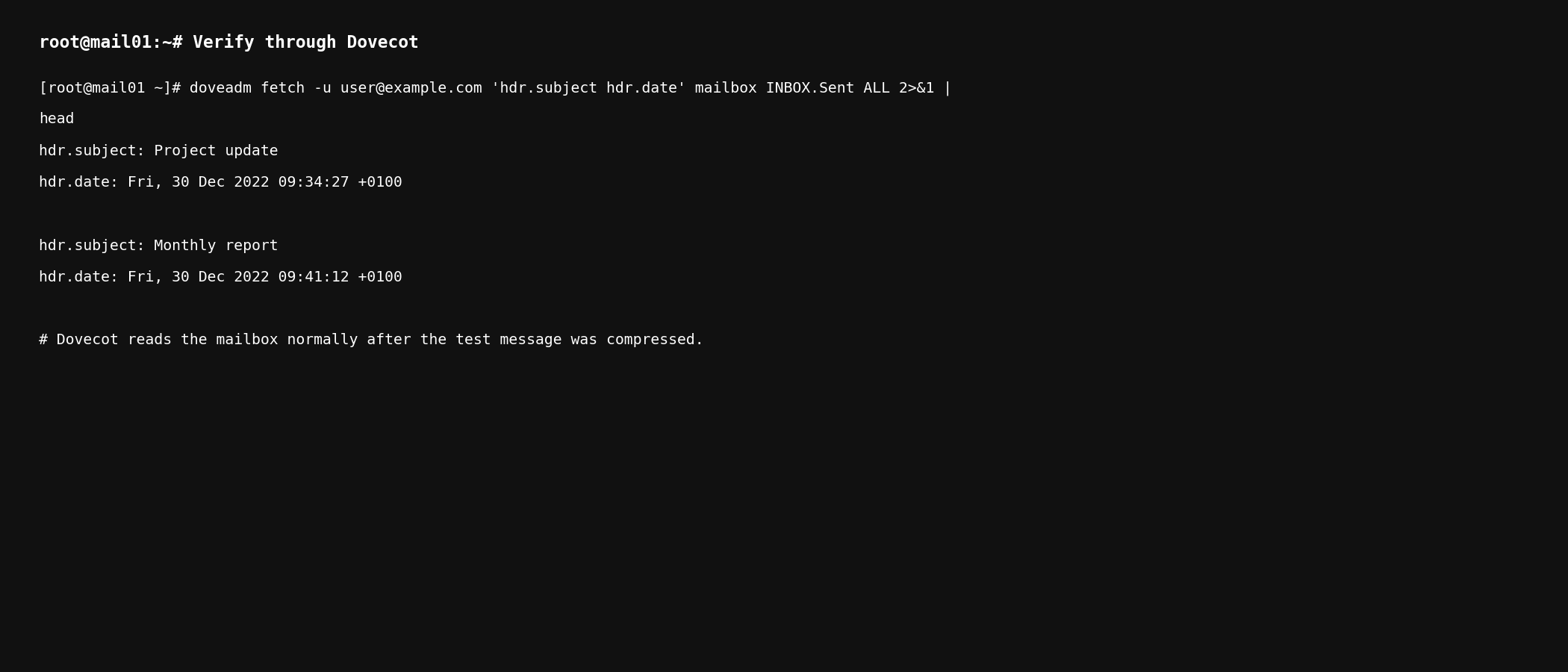
Dovecot could read the mailbox normally.
8. Test in Roundcube too
This is the test I care about most because this is what customer will actually use.
I logged into Roundcube, opened Sent, found an old message, opened it and downloaded the attachment.
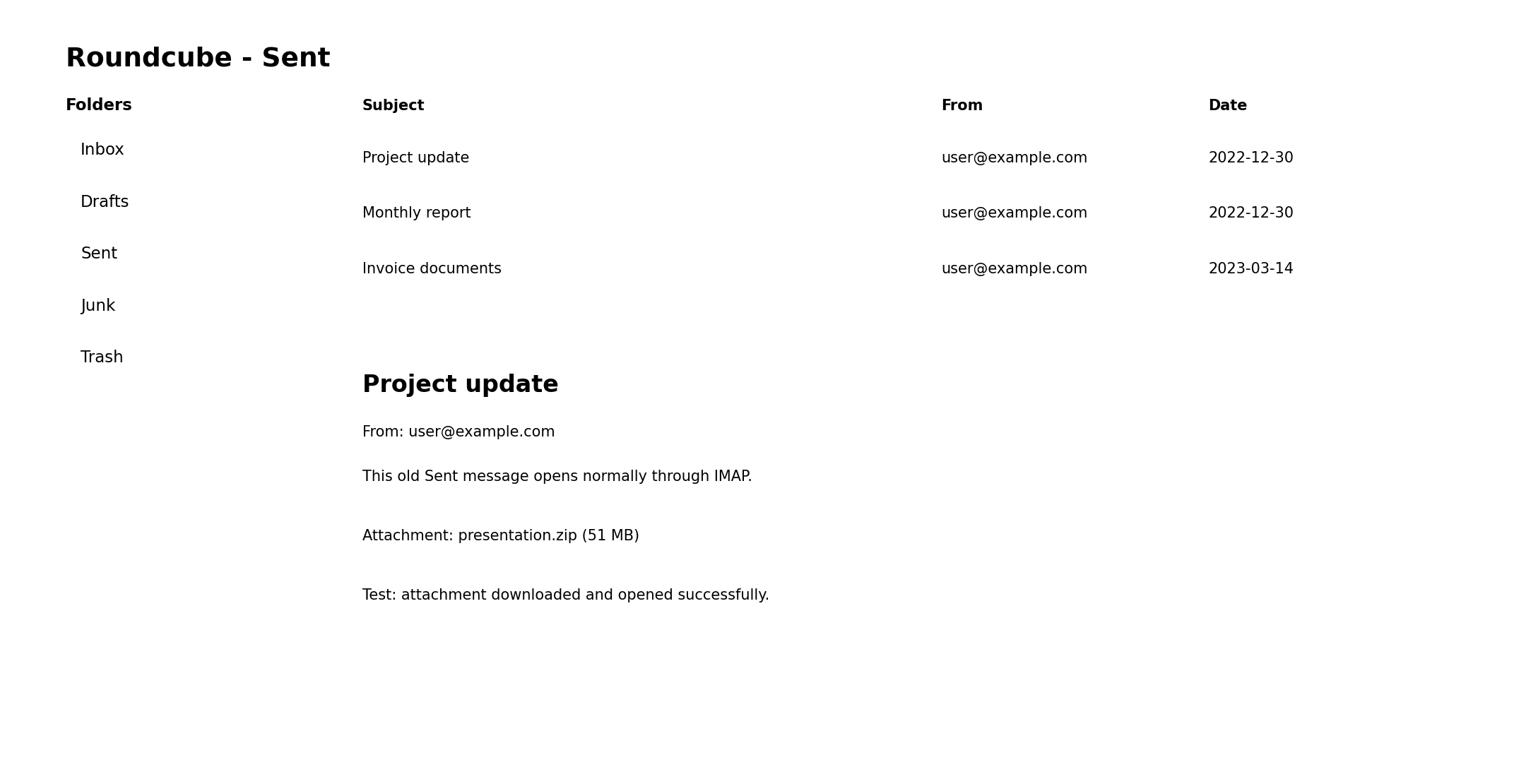
Everything worked normally.
The customer does not need to know that the physical Maildir message is compressed.
The flow is basically:
Roundcube
    |
    | IMAP
    v
Dovecot
    |
    | zlib
    v
gzip compressed Maildir message
Dovecot reads and decompresses it and Roundcube gets the normal message.
9. Compress only the old Sent messages
After the one message test was successful I processed only .Sent/cur and only messages from 2022 through 2024.
The selection was:
find "$MAILDIR/cur" \
  -type f \
  -newermt '2022-01-01' ! -newermt '2025-01-01'
For every message my process was:
- Skip it if it is already gzip compressed
- Write compressed copy into the same Maildir
tmp - Preserve ownership
- Preserve permissions
- Preserve mtime
- Verify with
gzip -t - Replace the original only after successful verification
- Log errors and successful replacements
Core part looked like this:
if file -b "$f" | grep -qi '^gzip compressed'; then
    continue
fi

tmp="$MAILDIR/tmp/.$(basename "$f").compress.$$"

if ! gzip -6 -c "$f" > "$tmp"; then
    rm -f "$tmp"
    continue
fi

chown --reference="$f" "$tmp"
chmod --reference="$f" "$tmp"
touch -r "$f" "$tmp"

if ! gzip -t "$tmp"; then
    rm -f "$tmp"
    continue
fi

if [ ! -f "$f" ]; then
    rm -f "$tmp"
    continue
fi

mv -f "$tmp" "$f"
For a busy mailbox I would also plan this in a maintenance window or use proper Maildir locking. A user can delete, move or change a message while your script is working. Do not ignore that race just because the gzip part works.
10. What if the disk is already almost full
This filesystem had only around 4 GiB free, so I was also worried if I need another 8 GiB just to compress 8 GiB of mail.
No.
The process handles one message at a time.
For example:
Original message:   50 MB
Temporary gzip:     37 MB
For a short time both files exist.
After successful verification the compressed file replaces the original and around 13 MB is freed.
Then it continues to the next message.
I monitored it with:
watch -n 10 'df -h /home4'
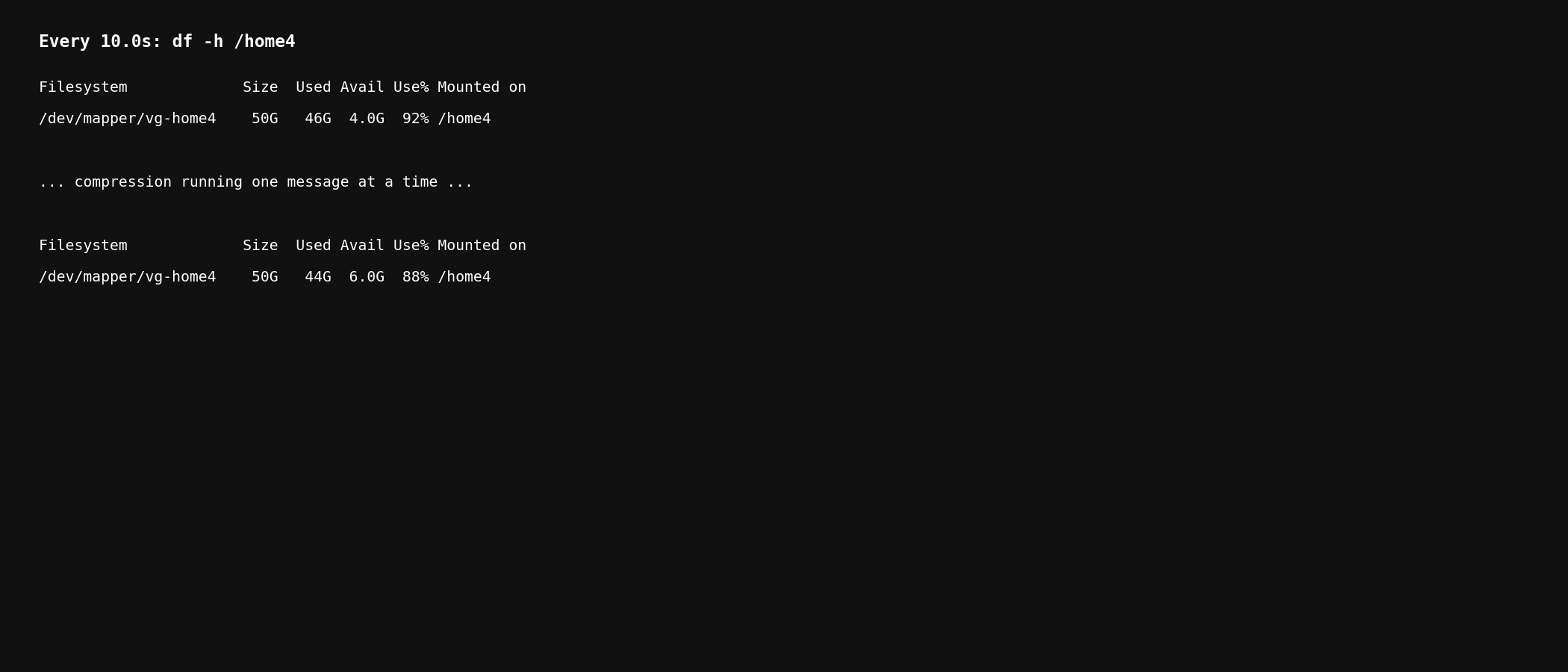
So instead of free space going down, it slowly started going up.
11. Result
This was the nice part.
Before:
.Sent = 9.5 GiB
After compressing old Sent messages from 2022 through 2024:
.Sent = 7.5 GiB
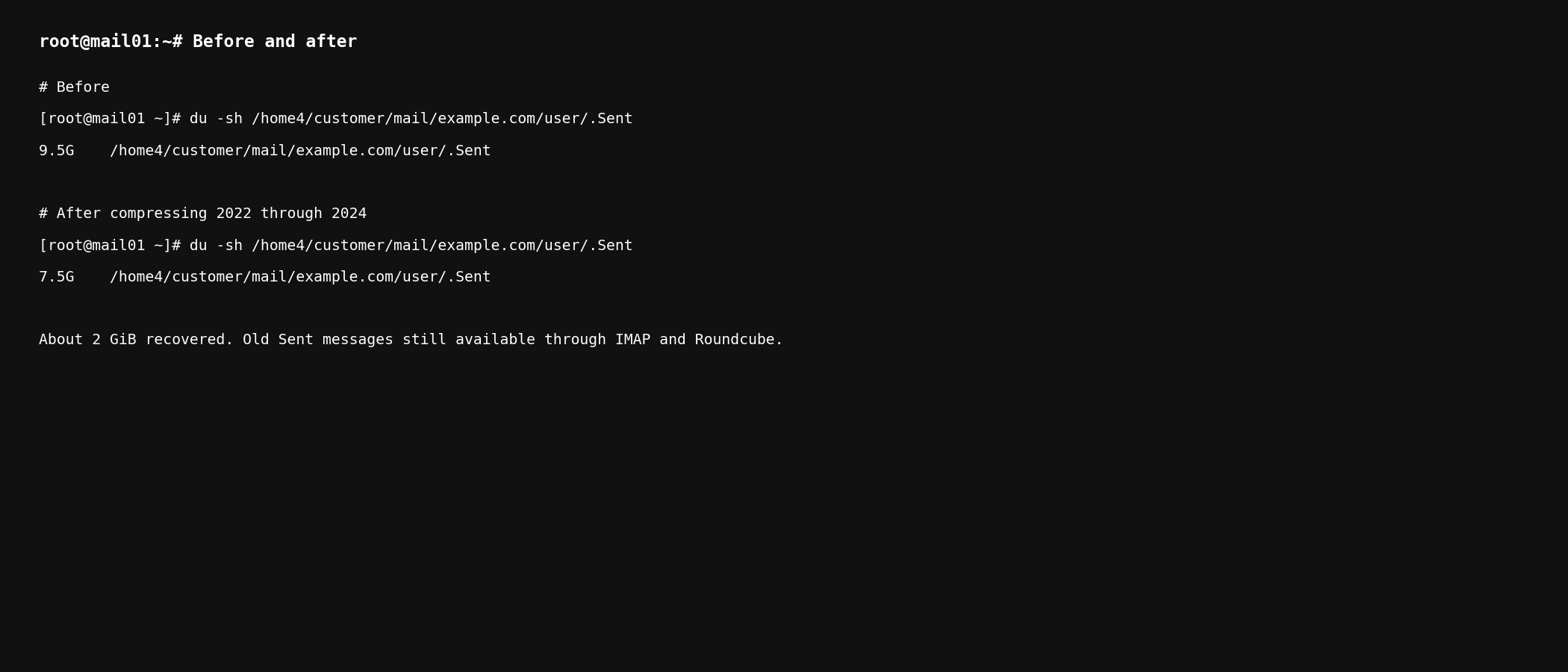
Around 2 GiB recovered from one mailbox.
The selected 2022 through 2024 messages were around 7.82 GiB before and around 5.78 GiB after compression.
Most important part: no emails were deleted.
Customer can still open old Sent messages in Roundcube and access attachments.
12. Then I checked other mailboxes
Of course one mailbox was not the end of the story.
The same domain had several large accounts. After checking only old Sent mail from 2022 through 2024 there was around 20 GiB in that scope.
At that size even 20 to 25 percent reduction can return several GiB of physical disk space.
I still did not jump directly to INBOX, Trash, Archive and everything else.
I prefer doing this in steps:
First: old Sent mail
Then: measure disk again
Then: decide if another folder is worth the risk and work
If the first pass gives enough breathing room, there is no reason to touch everything on the server just because we can.
Things I would not do
I would not do this:
gzip /home4/customer/mail/example.com/user/.Sent/cur/*
And I would not rename every message to .gz.
I also would not start with all customer mailboxes at once.
This is email. Be boring and careful.
Test one message. Test Dovecot. Test Roundcube. Test an attachment. Have backups.
Also remember that after you store messages compressed like this, Dovecot needs compression support to read them. Do not later remove the required compression plugin and then wonder why old mail stopped opening.
Update: I turned this into an open source tool
After doing this manually on more production mailboxes, writing shell scripts for different accounts and checking the same things again and again, I decided this should probably be a proper tool.
So I created MailShrink.
MailShrink is an open source command line tool written in Go for analyzing Dovecot Maildir servers and safely compressing old email to reclaim disk space.
Instead of manually finding Maildir folders and writing gzip scripts, it can check the Dovecot configuration, analyze the server, estimate how much space can actually be recovered and create a compression plan.
mailshrink check
mailshrink analyze
mailshrink plan example.com
Compression is dry-run by default:
mailshrink compress \
  --domain example.com \
  --folder Sent \
  --before 2025-01-01
And when everything looks good:
mailshrink compress \
  --domain example.com \
  --folder Sent \
  --before 2025-01-01 \
  --apply
It does the boring but important parts too: checking Dovecot compression support, validating Maildir metadata, preserving timestamps and permissions, mailbox locking, atomic replacement and detecting messages which are already compressed.
The project is MIT licensed and available on GitHub.
MailShrink source code on GitHub
If you find a bug or have some strange Dovecot or hosting panel setup, open an issue. I would actually like to see how this behaves on different real world mail servers.
Final thoughts
This was one of those sysadmin jobs where first answer looked like "add more disk".
Sometimes that is exactly the correct answer.
But in this case there was a lot of old Maildir data and Dovecot already had the feature needed to reduce physical usage without changing how customer works.
One 50 MB message became 37 MB.
One 9.5 GiB Sent folder became around 7.5 GiB.
Multiply that over many mailboxes and suddenly it is not a small optimization anymore.
It will not replace capacity planning and it will not compress already compressed attachments by some magic amount.
But if you are running cPanel and Dovecot and have years of old Maildir email eating disk, it is definitely something worth testing.
Just don't start with 20 GB.
Start with one email.
Verify everything.
Then automate. Good luck!